Monday, April 19, 2010

Operators - April 19

Watch the following presentation:

Operands


Do the following lab:

Gasoline Usage Calculator

1. Create (Paint) a form of your own design, including the following elements:
  • Appropriate Form Name
  • Four Text Boxes to who the following items
a. Miles to the next destination
b. Miles per gallon (what the vehicle gets MPG)
c. Price per gallon of gasoline
d. Total cost of gasoline required.

  • Four labels to identify each text box.
  • A labeled command button to initiate the calculation.
2. After the user fo the prgram enters the distance, MPG, and price...calculate the total cost to reach the next destination city.

3. Format the total cost to look like money.

Study the following code:
X = 123.45
X = FormatCurrency(x)

Thursday, April 8, 2010

History of Game Programming


Thanks to Cory Talbott, Southwestern student and USD 465 Techie, for the amazing presentation on Atari and the history of Video Gaming. Great detail on the programming side too....

Here are some of Mr. Talbott's recommended links:

Dan B's Atari 2600 Tech Page

AtariAge.com

Monday, April 5, 2010

Properties & Methods

This lesson is for the 1B Class and anyone who was NOT in the 4B class on Thursday. If you are in the 4B class scroll down to the bottom of this post.

Today, we are going to go into more detail about Visual Basic Properties. Go through the following tutorials in order. As you finish each tutorial, work through the example yourself. Save it as yourlastname_PropTutorial1, yourlastname_PropTutorial2, etc...I will check for these files upon my return.

Properties: Tutorial 1


Properties: Tutorial 2


When you complete the Tutorials...Ask your teacher for the "Find the Treasure" Assignment and have fun! Hint. For this project, the property that you will change is BackColor...Use Intellisense.


Attention 4B Students...Start Here
If you have completed the "Find the Treasure" assignment from last Thursday...move ahead. Otherwise, finish the "Treasure" assignment and/or go through the above tutorials if you missed last Thursday.

4B Assignment: You are going to work on understanding "properties" a little bit more. Complete the following assignment.

Flowers Challenge: In this assignment, you will create a form to show flowers. You will write the code to cause changes to the properties of the form. First save the following images to yo
ur local computer (where you can retrieve them again).


Using these images, paint a form that looks like the following (to do so watch the below tutorial on adding images to a form):


Tutorial:

Adding Images to Forms Tutorial


Once the form is "Painted", do the following:

1. Set the visible property of the 4 pictureboxes to False.
2. Set the Border style of the 4 pictureboxes to Fixed3D.
3. Set the SizeMode property of the 4 pictureboxes to AutoSize.
4. Set the Image property of each picturebox to the corresponding image in the download folder.
5. Go to the code page. Just above the code itself are two dropdown lists. From the left dropdown list, choose label1.
6. From the right dropdown list, Choose MouseHover.
7. In the Label1.Mousehover event, set the Visible property of PictureBox1 to True. Set the Visible property of the other three boxes to false.
8. Do the same for the other three Labels, making the corresponding changes in which Pictures are visible and which are not.
9. The end result is a program that only shows one picture at a time when the mouse is held over the description.

When your program works correctly. Save it as yourlastname_Flowers and save it to the x:\4B\Flowers folder. If Flowers does not exist, will someone please create it?

Have a great day!

Monday, March 22, 2010

Lesson 12 - Event Programming

Event handlers respond to inputs (mouse, keyboard) or program changes such as execution of a method.

The following are Event Handlers available in Alice:

World Events:
When the World Starts
While the World Is Running

Keyboard Events:
When a Key is Typed
While a Key is Pressed
Let the Arrow Keys Move an Object

Mouse Events:
When the Mouse is Clicked on Something
While the Mouse is Pressed on Something
Let the Mouse Move the Camera
Let the Mouse Orient the Camera
Let the Mouse Move Objects

Condition Events:
When a variable changes
While something is true
When something becomes true


Thursday, March 4, 2010

Lesson 11 - Repetition

A While Statement is based a Boolean (true/false) condition and repeatedly executes it's containing statements as long as the condition is true. An Infinite loop is a loop that never becomes false.

Assignment:
Using the provided file crash.a2w; modify it so that when the trucks get to close to each other, the condition becomes false and the loop terminates. (Hint: Use a "proximity" function to specify that the front wheels of each truck are at least .5 meters away from each other.) Also, add the following actions.

1. Make a crash sound when they "appear" to collide.
2. Make the front right wheel of the Cement truck roll down the street after the collision.

Print the code and turn in to your teacher.

-------------------------------------------------------------------------------------------------

The Loop Statement allows coders to control the number of loop executions.


Assignment:

Open studentspeedingcar.a2w; Modify the Speedingcar world so that it calculates the total distance the car travels during its trip to the rest stop. Print the result (in the play output) when the car comes to a stop.

Speeding Car II
Modify SpeedingCar so that it displays the distance the car has traveled while it is moving. Continuously display the result on a 3D text object that stays visible in the upper portion of the disply window.

Horse Assignment:
Create an Alice world in which a horse (or other animal of your choice) is relaxing in a field. Define 5 different basic actions for the horse (sway it's tail, dip it's head, whinny, etc.) Use a loop to constantly keep the horse active, randomly choosing the next action. Add pauses of random duration between actions as well.

Tuesday, March 2, 2010

Lesson 10 - Decisions

Using If/Else & While statements are an integral part of programming and learning logic.

"Control statements allow us to control the flow of our program's logic. Control statements make decisions based on the result of a condition. The condition produces a Boolean (true or false) result, which determines which statements are executed next." (Lewis & Depasquale, 42)


Lab:

Using Intersection3.a2w, obtained from the x:\4B folder; make the following changes:

1. Modify the decision statement to ensure that:
The Bike turns right 20% of the time.
The Bike turns left 40% of the time.
The Bike goes straight 40% of the time.

2. Ensure that there is a 60% chance that the bell will play when the biker turns left.

Tuesday, February 23, 2010

Lesson 9 - Class Level Methods

Read and work through the linked tutorial. Upon completion, save the class you created in the tutorial in the x:\ in either 1B or 4B respectively, and in a folder called Lesson 9 (Create this folder if it does not already exist). Name the class yourlastname_SpinningHare. Also save the program named Alice 0150b specified in the tutorial in the same folder with yourlastname_alice150b

Sunday, February 21, 2010

World Level Methods (Assignment 8)

Read and work through the following tutorial. After reading and working through the linked tutorial. Complete the following lab project.

Lab project

Beginning with the program named Alice0145b, create a new program.

The behavior of the new program is the same as the behavior of the original program except that the program asks the user to enter two numeric values. The first numeric value is the distance that the penguins are to move. The second numeric value is the distance that the cows are to move.

Modify the original program to solicit these two numeric values from the user and to use the two numeric values to control the distance moved by the penguins and the cows.

Save your world in a file named Alice145LabProjA.a2w and be prepared to deliver it to your instructor in whatever manner the instructor specifies.

Make certain that your preferences are set to Java Style in Color.

Select Export Code For Printing... on the File menu and save your source code in a file named Alice145LabProjA.html. Save this file to the x:\ in the Lesson 8 folder for the appropriate block.

Wednesday, February 10, 2010

Alice - - Day 7

Functions that Return Values

Read through the linked tutorial

Lab Project
Complete the following lab, save to the X:\ in the proper class folder

Begin with the program named Alice0135b created through the tutorial.

Create and add a new function belonging to the Coach object named getChicken.

Update the main method to that shown in Listing 3.

Listing 3. Updated main method for Alice135LabProjA.a2w.

public void main ( ) {

// Copyright 2007 R.G.Baldwin
// Program demonstrates defining two new functions.
doInOrder {

print( ( Distance to chicken is: + ( ( coach.getDistanceToChicken ( ) ) .toString() ) ) );
( coach.getChicken ( ) ) .turn( RIGHT , 2 revolutions );
}
}

When you play your world, it will display the distance from the coach to the chicken as shown in Figure 4 (it is not necessary to match the value of the distance shown in Figure 4). Then the chicken will turn to the right, making two complete revolutions around its own green axis.

Save your world in a file named Alice135LabProjA.a2w and be prepared to deliver it to your instructor in whatever manner the instructor specifies.

Make certain that your preferences are set to Java Style in Color.

Select Export Code For Printing... on the File menu and save your source code in a file named Alice135LabProjA.html. Also be prepared to deliver this file to your instructor in whatever manner the instructor specifies.

_______________________________________

Data Types and Variables

Read through the linked tutorial

Lab Project

Create a new world using the grass template. Place a Coach object in the world.

Rename the default method main. The method named main must be empty except for comments and a call to a world-level method named processData.

Write the code in the method named processData to do the following:

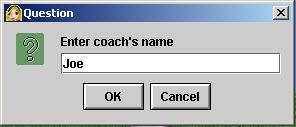
  • Get the coach's name from the user as shown in Figure 8 and store the name in a variable of type String named coachesName.
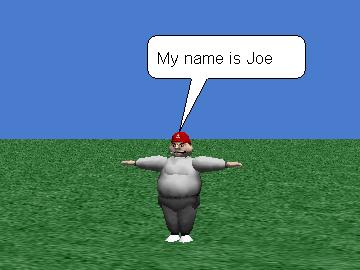
  • Display the coach's name for five seconds as shown in Figure 9.
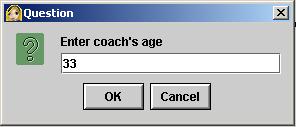
  • Get the coach's age from the user as shown in Figure 10 and store the age in a variable of type Number named coachesAge.
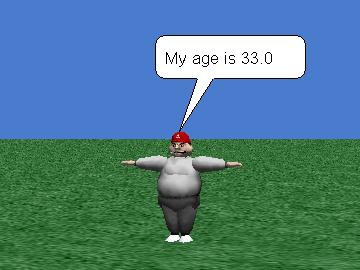
  • Display the coach's age for five seconds as shown in Figure 11.

Figure 8. Input dialog for coach's name.

Figure 9. Program output for coach's name.

Figure 10. Input dialog for coach's age.

Figure 11. Program output for coach's age.

Save your world in a file named Alice140LabProjA.a2w and save to the X:\ in the proper class folder.

Make certain that your preferences are set to Java Style in Color.

Select Export Code For Printing... on the File menu and save your source code in a file named Alice140LabProjA.html. Also be prepared to deliver this file to your instructor in whatever manner the instructor specifies.

Wednesday, January 27, 2010

Alice -- Day 4

Tutorial: Your First Alice Program


Lab project

Create a new world using the Snow template. Place a parking meter and an ice skater in the world. Do not perform any manual operations to set the position or orientation of the ground, the parking meter, the ice skater, or the camera. However, you may perform manual operations to cause the objects in the world to be invisible at startup.

Rename the default method main.

Write the following two world-level methods, and cause these two methods to be called in sequence by the code in the main method:

  • setTheStage
  • playTheShow

Cause the ground, the skater, and the parking meter to be invisible when you click the Play button or the Restart button to play your world.

Assume that the blue axis belonging to the ground points due south.

In the method named setTheStage:

  • Align the viewpoints of all objects with the world.
  • Position the skater 2 meters due east of the parking meter in her default standing position with her feet on the ice facing the parking meter.
  • Position the camera 10 meters due south of the parking meter, 1.5 meters above the ground, facing the skater.

Cause the above actions to take place as quickly as possible while the objects are invisible. Then do the following in sequential order:

  • Cause the ground to become totally visible in 0 seconds.
  • Cause the parking meter to become totally visible over a period of 2 seconds.
  • Cause the skater to become totally visible over a period of 2 seconds.

Then terminate the method named setTheStage.

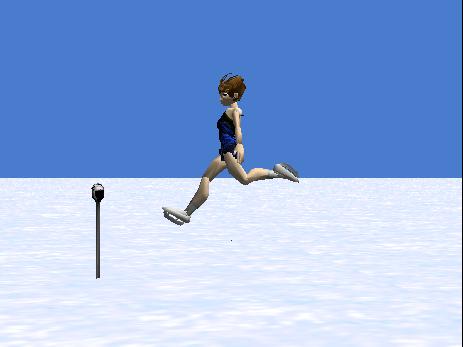
Write the code in the method named playTheShow to cause the skater to transition from her original default standing position on the ice to the pose and viewpoint shown in Figure 11 over a period of one second. Note that the skater does not move horizontally in this method. Also she does not rotate around her green axis. In other words, she is 2 meters from the parking meter facing in the general direction of the parking meter in Figure 11.

Then terminate the method named playTheShow.

The final view of your world be must as shown in Figure 11 with the skater centered horizontally in the window. When you adjust the size of your World Running... window to match the size of Figure 11, the sizes of the parking meter and the skater must be as shown and the relationships among the skater, the parking meter, and the horizon must be as shown.

Save your world in a file named Alice125LabProjA.a2w and be prepared to deliver it to your instructor in whatever manner the instructor specifies.

Make certain that your preferences are set to Java Style in Color.

Select Export Code For Printing... on the File menu and save your source code in a file named Alice125LabProjA.html. Also be prepared to deliver this file to your instructor in whatever manner the instructor specifies.

Figure 11. Required final program output for lab project A.

View a movie of the lab project

You can download and play a small, low-quality movie of my version of the lab project as it being executed from the Resume button (see Downloads). This movie was designed to give you a rough idea of how your program should behave. The movie was purposely reduced in size and recorded in a low-quality format to reduce the file size and hence reduce the download time.

Because of the low quality of the movie, the execution of your program should provide much smoother animation, and should be less grainy than the movie. Also, because of the low quality of the movie, the timing in the movie doesn't necessarily match the duration times specified for the lab project.

I attempted to synchronize the beginning of the recording with the beginning of the program execution by starting, then quickly pausing, and then resuming the execution. If you watch closely, when the movie starts running, you will see the mouse pointer click the Resume button, and the movie will show one complete pass through the program.

You should view this movie in its original size. If you allow the media player to enlarge it, the quality will be poor.

Monday, January 25, 2010

Alice -- Day 3

You will be reviewing how to set the stage. Read the following online tutorials and complete the labs as shown.

Tutorial: Setting the Stage Manually, Part 1

Lab Project 1:
Create a new world, select the Sand template, and add a Coach object from the People thumbnail.

Modify the color properties of the various subparts of the Coach object to cause the coach to be wearing a red shirt as shown in Figure 11.

Arrange the coach's limbs into the pose shown in Figure 11.

Adjust the camera position and orientation (viewpoint) to approximate the image shown in Figure 11 when you manually resize your World Running... pane to approximately match the size of Figure 11.


Save your world in a file named Yourlastname_Alice115LabProj.a2w and save it in the appropriate x drive folder.


Tutorial: Setting the Stage Manually, Part 2

Lab Project 2
Use interactive method calls (not buttons) on an ice skater object and the camera to produce the pose and the camera viewpoint shown in Figure 18. Save your world in a file named Yourlastname_Alice120LabProj.a2w and save to the x drive appropriate folder.

Friday, January 15, 2010

Alice -- Day 2

Read the Tutorials & Complete Labs:

Tutorial 1: Setting the Stage

Labs Project

Project 1: Object manipulator buttons

Create a new world. Select the template of your choice and click the Open button. Switch into scene edit mode by clicking the ADD OBJECTS button and drag an object from the Gallery into your world. Click on the object in the world to make certain that it is selected.

Select the leftmost button in the line of seven buttons in the upper right area of the screen in Figure 2. Drag the mouse on the object and observe the behavior. Try to understand that behavior. Continue this process for each button in the line going from left to right. (If you allow the mouse pointer to hover over a button, the text above the line of buttons will provide a brief description of the purpose of each button.)

To improve your understanding of the behavior, you may find it useful to read ahead in the lesson titled "Setting the Stage Manually, Part 1" for information on the behavior imparted by each of the seven buttons.

Project 2: Camera controls

Using the world that you created in Project 1 above, click and drag your mouse pointer on each of the ten arrow heads of the three sets of blue arrows that appear below the world in Figure 2. Observe and try to understand the resulting behavior. (If you allow the mouse pointer to hover over a blue arrow head, a tooltip will appear that explains the purpose of each set of blue arrows.)

You may also find it useful to read ahead in the lesson titled "Setting the Stage Manually, Part 1" for information on the behavior imparted by each of the blue arrow heads.

Tutorial 2: Objects in 3-D Space

Lab Project:

Create a new world, select the Snow template, and add an IceSkater object from the People thumbnail.

Arrange the skater's limbs into the pose shown in Figure 13. In other words, Figure 13 shows what should appear in the World Running... pane when you Play your world. Note, however, that the World Running... pane is re-sizable so yours may be a different size.

Hints: You may need to read ahead in the next lesson to learn about the camera controls and the object manipulator buttons. You may also need to check the box labeled affect subparts.

Adjust the camera position and orientation (viewpoint) to approximate the image shown in Figure 13 when you manually resize your World Running... pane to approximately match the size of the above picture.


Save your world in a file named yourlastname_Alice110LabProj.a2w and save to the x drive in the Lesson 2 Folder.